
Apple Accessories Buyer's Guide: Checking Magic Keyboards & Mice for Counterfeits
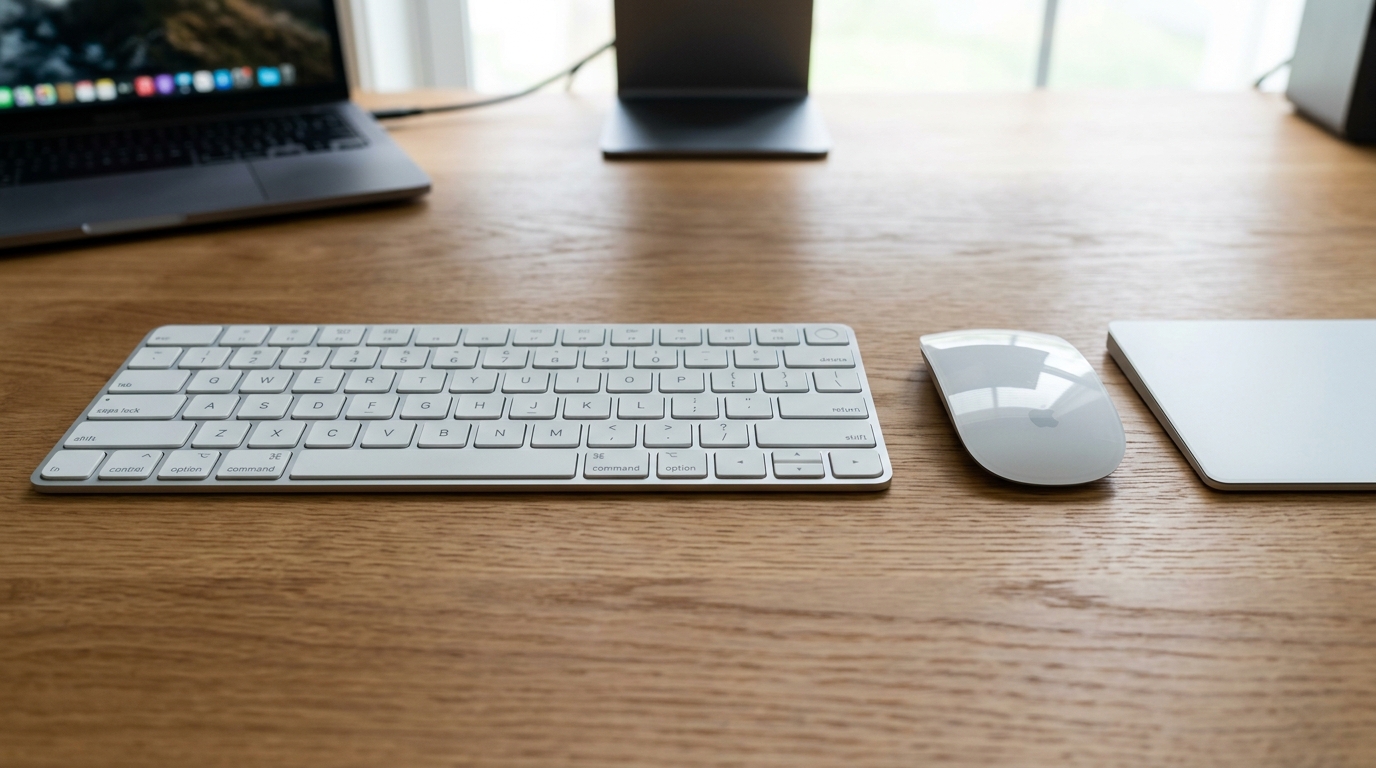
Avoid fake Apple peripherals. Learn how to verify serial numbers, check Bluetooth configurations, and test battery life on pre-owned Magic Keyboards and Mice.
The Risk of Counterfeit Apple Accessories
As Magic Keyboards, Magic Mice, and Magic Trackpads have grown in popularity, the market has been flooded with high-copy counterfeit clones. These fake products look identical on the outside, but have poor Bluetooth connectivity, short battery life, and lack smooth integration with macOS.
If you are buying pre-owned Apple accessories from individual sellers, here are the tests you must perform to verify they are 100% original.
1. Check the System Report Bluetooth Details
This is the most reliable test. Clones cannot fake Apple's proprietary hardware firmware signatures inside macOS. Connect the device via Bluetooth, then:
Hold the Option (⌥) key -> click Apple Logo -> System Information -> Bluetooth. Find the connected device and verify:
- Manufacturer: It must state "Apple" (or Hex identifier
0x004C). - Firmware Version: Original Apple accessories will show a valid version string (e.g.
1.0.4) and update automatically when connected via USB-to-Lightning cable. Fakes will fail to update.
2. Verify the Serial Number
Locate the serial number printed in tiny font on the bottom of the device (near the laser sensor on the Magic Mouse, or next to the power switch on the Magic Keyboard). Enter this serial on Apple's official Check Coverage website. It must show a valid product model.